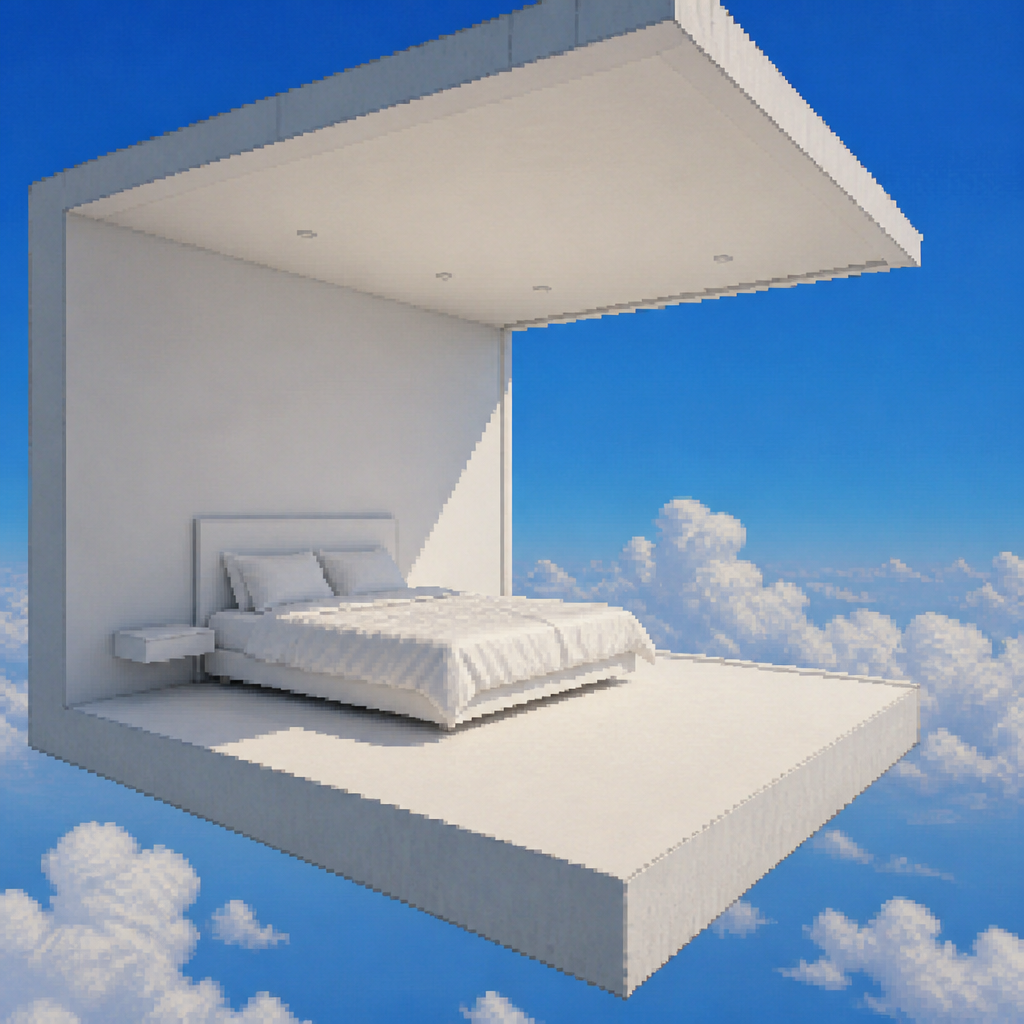
A screenshot taken from a vertically oriented smartphone video shot in an uncontrolled, imperfect filming environment. The screenshot is a frame extracted from…
More from the community
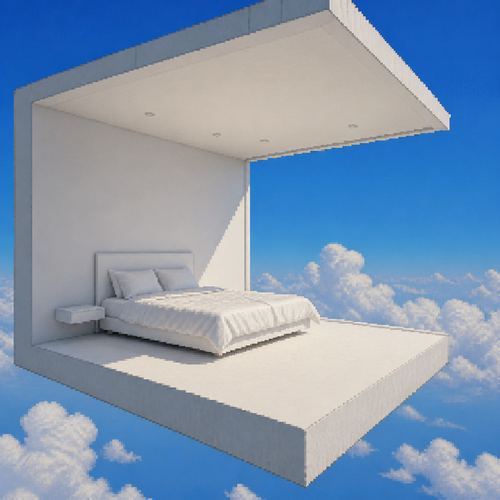
A screenshot taken from a vertically oriented smartphone video shot in an uncontrolled, imperfect filming environment. The screenshot is a frame extracted from a 3-hour-and-42-minute video in which the camera moves through approximately 20 different rooms. No date, timestamp, recording indicator, or other on-screen UI elements are visible. The camera has noticeable handheld movement and subtle shaking along the X, Y, and Z axes, giving the image a natural, unsteady perspective.A completely white, modern room with one entire wall missing, opening directly to a clear blue sky. The room itself appears to be floating in midair, creating a surreal architectural atmosphere. A bed is placed inside the room.
![The filming environment is unpolished and unprofessional. This is a screenshot taken from a 3-hour-and-42-minute video exploring approximately 20 different rooms. There are no dates, timestamps, recording indicators, or other on-screen UI elements visible. The camera subtly shakes and moves along the X, Y, and Z axes.
An empty, unmanned museum with a bright, softly colored wooden floor and white concrete walls. In the center of the room stands a bare ceramic pedestal with nothing displayed on top. The pedestal is surrounded by four gold-colored stanchions connected by red velvet ropes. At one point, the rope has been torn loose from one of the stanchions, leaving a visibly broken section.
There are no artworks or exhibits anywhere in the museum other than the empty pedestal. In front of the pedestal is a small artwork title plaque bearing the title: “Statue of [Character Name] from [Fictional Place Name].”](https://media.pxlart.com/20aefa77-23af-4dd7-91dd-0566d8a553fa-thumbnail.png)
The filming environment is unpolished and unprofessional. This is a screenshot taken from a 3-hour-and-42-minute video exploring approximately 20 different rooms. There are no dates, timestamps, recording indicators, or other on-screen UI elements visible. The camera subtly shakes and moves along the X, Y, and Z axes. An empty, unmanned museum with a bright, softly colored wooden floor and white concrete walls. In the center of the room stands a bare ceramic pedestal with nothing displayed on top. The pedestal is surrounded by four gold-colored stanchions connected by red velvet ropes. At one point, the rope has been torn loose from one of the stanchions, leaving a visibly broken section. There are no artworks or exhibits anywhere in the museum other than the empty pedestal. In front of the pedestal is a small artwork title plaque bearing the title: “Statue of [Character Name] from [Fictional Place Name].”
![An imperfect, unstaged museum interior captured from a screenshot taken from a 3-hour-42-minute video that moves through approximately 20 different rooms. No date, timestamp, recording indicator, or other on-screen UI elements are visible. The camera is handheld and slightly unstable, shifting along the X, Y, and Z axes.
The scene is empty and unoccupied. The museum has light-colored wood plank flooring and white concrete walls. At the center is a ceramic pedestal surrounded by four gold-colored stanchions connected by red velvet ropes. At one point, one of the red ropes has come detached from its stanchion and is hanging loose.
There are no artworks other than the sculpture displayed on the pedestal. A small title plaque is placed in front of the pedestal, reading: “Statue of [Person’s Name] from [Fictional Place Name].”
Natural, bright lighting, realistic materials, documentary-like appearance, slightly imperfect handheld framing, no people, no visible camera operator, no text or interface overlays other than the artwork title plaque.](https://media.pxlart.com/50b4fbde-5bf7-4367-aa27-95bc98107e66-thumbnail.png)
An imperfect, unstaged museum interior captured from a screenshot taken from a 3-hour-42-minute video that moves through approximately 20 different rooms. No date, timestamp, recording indicator, or other on-screen UI elements are visible. The camera is handheld and slightly unstable, shifting along the X, Y, and Z axes. The scene is empty and unoccupied. The museum has light-colored wood plank flooring and white concrete walls. At the center is a ceramic pedestal surrounded by four gold-colored stanchions connected by red velvet ropes. At one point, one of the red ropes has come detached from its stanchion and is hanging loose. There are no artworks other than the sculpture displayed on the pedestal. A small title plaque is placed in front of the pedestal, reading: “Statue of [Person’s Name] from [Fictional Place Name].” Natural, bright lighting, realistic materials, documentary-like appearance, slightly imperfect handheld framing, no people, no visible camera operator, no text or interface overlays other than the artwork title plaque.
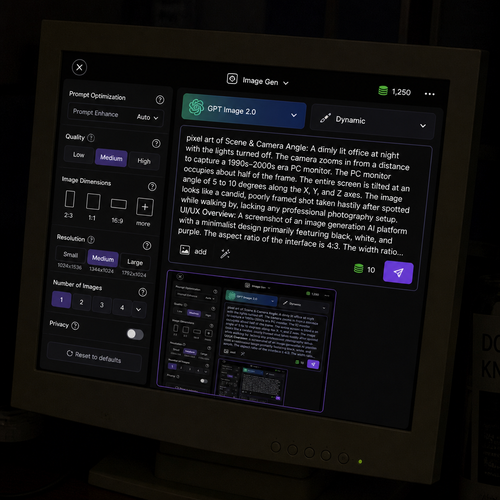
Scene & Camera Angle: A dimly lit office at night with the lights turned off. The camera zooms in from a distance to capture a 1990s–2000s era PC monitor. The PC monitor occupies about half of the frame. The entire screen is tilted at an angle of 5 to 10 degrees along the X, Y, and Z axes. The image looks like a candid, poorly framed shot taken hastily after spotted while walking by, lacking any professional photography setup. The screen displays the following content: UI/UX Overview: A screenshot of an image generation AI platform with a minimalist design primarily featuring black, white, and purple. The aspect ratio of the interface is 4:3. The width ratio between the settings panel (sidebar) and the image generation library (main content area) is 1:5. Top Navigation Bar: Top-Left: A close button represented by an "X" inside a circle, used to return home. Top-Center: A simple, square icon representing image generation, with the text "Image Gen ∨" next to it. Top-Right: An icon resembling stacked coins drawn in green, with the current credit balance displayed next to it. To the right of the credits, there is a white horizontal ellipsis (three dots). The background color of these top navigation icons is black. Left Panel (Settings - 25% Width): This section controls the detailed settings for image generation. Each setting group (Quality, Dimensions, etc.) is arranged horizontally, and each element enclosed in quotation marks represents a button, visually separated inside a dark gray rounded rectangle. A help icon (a question mark inside a circle) is placed to the right of each section heading. Prompt Optimization: At the top, there is a setting indicating whether to auto-convert the prompt. A small gray text reading "Prompt Enhance" is located at the top-right of the icon, with white text reading "Auto" at the bottom-right, followed to the right by a "∨" dropdown arrow on the far right. Quality: A section heading in small white text. Below it are three quality options arranged horizontally from left to right: "Low", "Medium", and "High". Image Dimensions: A section heading in small white text for aspect ratio settings. Below it, four text labels are listed horizontally from left to right: "2:3", "1:1", "16:9", and "more". Above each label, a white rectangular frame visually represents the corresponding aspect ratio. The visual representation for "more" (other ratios) features a square smaller than the 1:1 ratio, with a small "+" mark overlapping its bottom-right corner. Resolution: Below the aspect ratios, there are resolution settings with white text labels: "Small", "Medium", and "Large". Below each label, the detailed pixel dimensions (width and height) are written in small gray text. Number of Images: A heading in white text indicating the output count. Below it, there are tabs to select the number of images: "1", "2", "3", "4", followed to the white "∨" dropdown arrow to select higher numbers. Privacy: A privacy setting heading in white text. To its right sits a toggle switch with a light gray background and a white slider thumb. Reset Button: At the bottom, a "⟲ Reset to defaults" button in white text spans about half the width of the settings panel. Right Panel (Prompt & Library - 75% Width): This section consists of the prompt input field and the generated image library. Top Configuration Tabs (Left): A tab for the AI model selection shows "GPT Image 2.0". The background of this entire tab features a light blue gradient with a large, translucent graphic that looks like it is made of light-green glass, mimicking the GPT logo. Top Configuration Tabs (Right): A tab for the image theme selection features a thick brush icon on the far left, followed to the right by the text "Dynamic". Both tabs feature a "∨" dropdown arrow on their right edge. Prompt Input Field: Located below the tabs. The latter half of the prompt text overflows the text area and is truncated with an ellipsis ("..."). Bottom-Left of the field: An "add image" tab featuring an image icon next to the word "add", immediately followed to the right by a prompt refinement/polishing icon. Right edge of the field: The required credit cost for generation is displayed as a simple number next to a stacked-coin icon. Next to it is the send/generate icon, which features a white paper airplane on a purple background. Input Text: The text currently entered into this prompt field is exactly identical to this entire descriptive prompt text itself. Image Library: Below the input field. In the top-left corner of the library, a single generated image is displayed. This generated image is a recursive screenshot that is identical to the entire image generation interface itself.
AI

anime

a tree
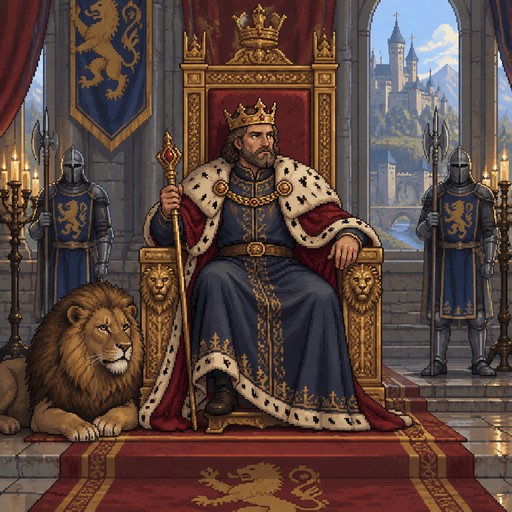
As un rey
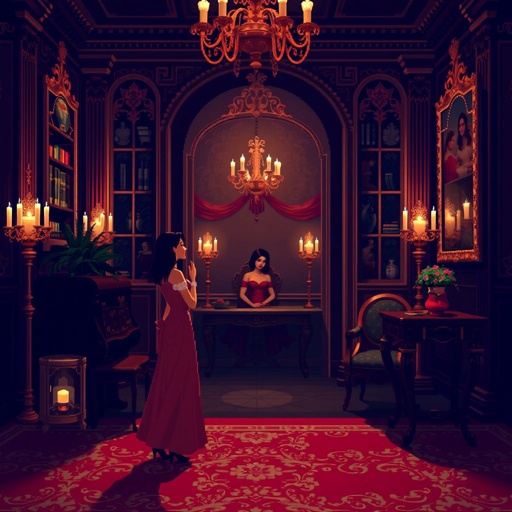
Adultry

An engine
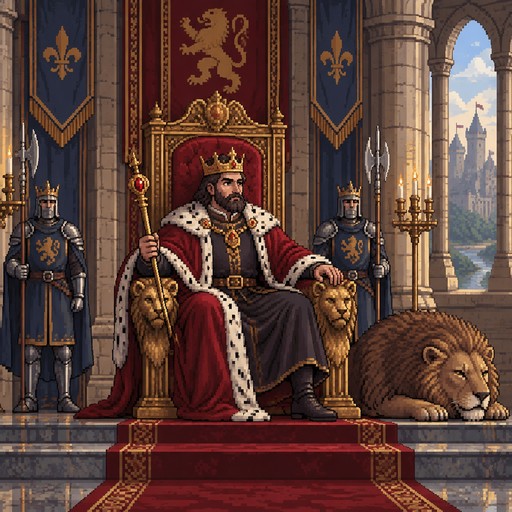
As un rey

Amy rose