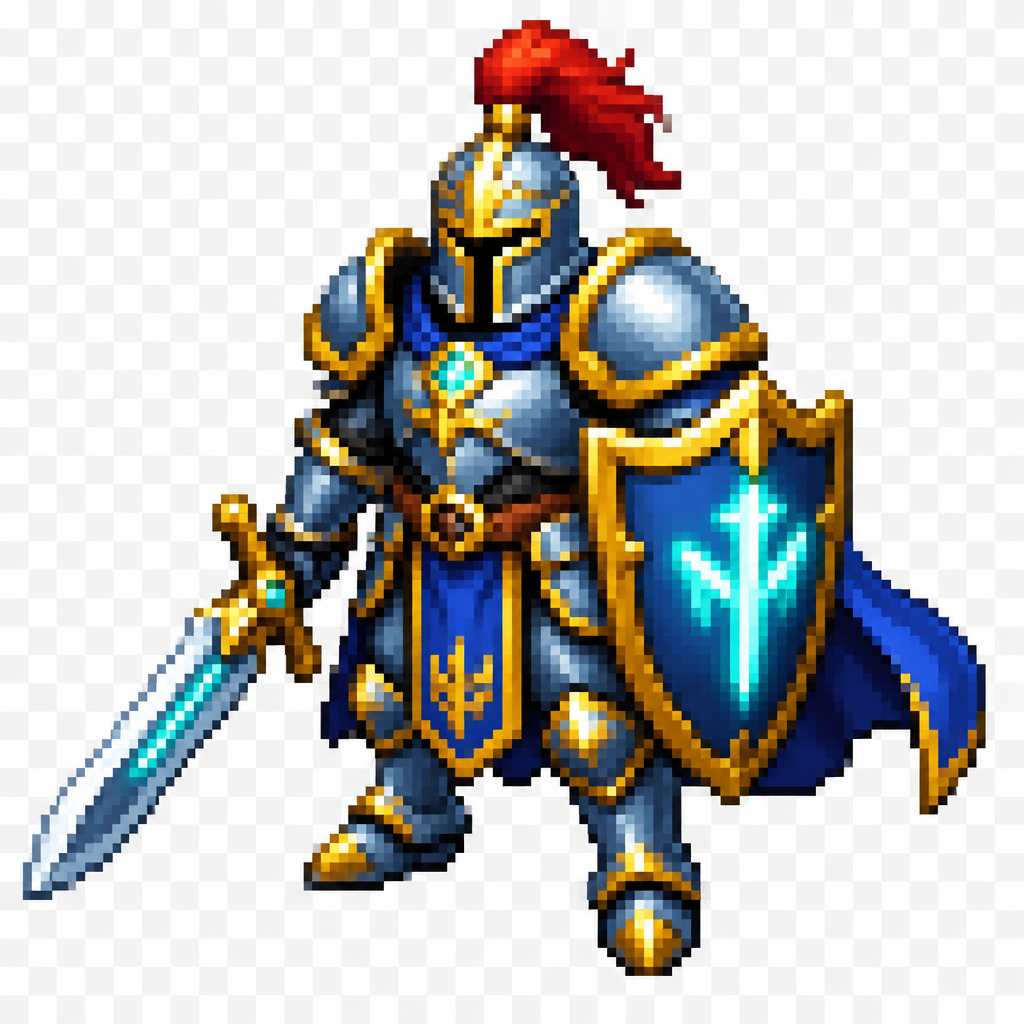
prompt: 32x32 pixel art sprite of a heroic fantasy knight in three-quarter top-down view, standing upright in a commanding pose. Royal Vanguard style: full plate armor with broad shoulders, large heater shield on the left arm featuring a glowing teal rune in the center, one-handed broadsword held ready in the right hand. Color palette: vibrant steel blues and silvers for armor with bright gold accents and trim, teal glowing runes and magic details, deep royal blue cape flowing behind, red plume on helmet. Strong clear silhouette, exaggerated helmet and sword for readability, high contrast between armor, cape, weapon, and shield. Bright heroic fantasy style, limited pixel palette, clean lines, no tiny details, transparent background, animation-ready proportions for mobile game.
orientation: portrait
layout: block

prompt: 32x32 pixel art sprite of a heroic fantasy knight in three-quarter top-down view, standing upright in a commanding pose. Royal Vanguard style: full pla…

More from the community
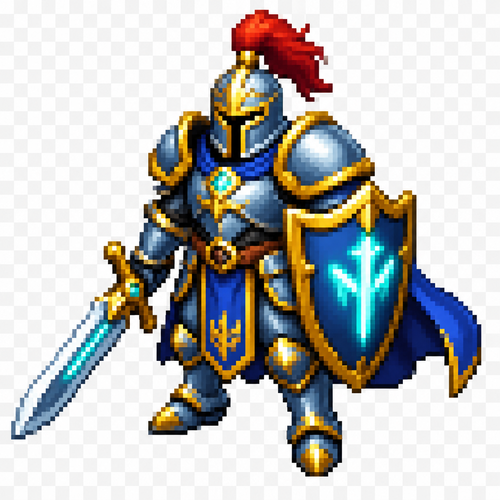
prompt: 32x32 pixel art sprite of a heroic fantasy knight in three-quarter top-down view, standing upright in a commanding pose. Royal Vanguard style: full plate armor with broad shoulders, large heater shield on the left arm featuring a glowing teal rune in the center, one-handed broadsword held ready in the right hand. Color palette: vibrant steel blues and silvers for armor with bright gold accents and trim, teal glowing runes and magic details, deep royal blue cape flowing behind, red plume on helmet. Strong clear silhouette, exaggerated helmet and sword for readability, high contrast between armor, cape, weapon, and shield. Bright heroic fantasy style, limited pixel palette, clean lines, no tiny details, transparent background, animation-ready proportions for mobile game.
orientation: portrait
layout: block

prompt: 32x32 pixel art sprite of a heroic fantasy knight in three-quarter top-down view, standing upright in a commanding pose. Royal Vanguard style: full plate armor with broad shoulders, large heater shield on the left arm featuring a glowing teal rune in the center, one-handed broadsword held ready in the right hand. Color palette: vibrant steel blues and silvers for armor with bright gold accents and trim, teal glowing runes and magic details, deep royal blue cape flowing behind, red plume on helmet. Strong clear silhouette, exaggerated helmet and sword for readability, high contrast between armor, cape, weapon, and shield. Bright heroic fantasy style, limited pixel palette, clean lines, no tiny details, transparent background, animation-ready proportions for mobile game. orientation: portrait layout: block
Simple 32x32 human
Simple 32x32 human

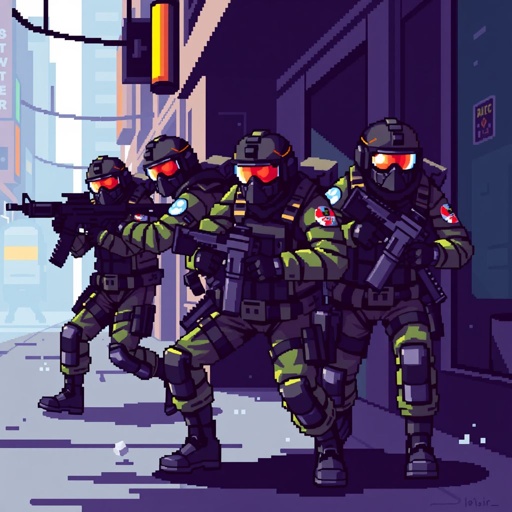
Swat raid 32x32

Swat raid 32x32

Stratagevo

Stratagevo

girl with blue eyes, black glasses, long red hair style in dark red, light skin, blue eyes, and thick lips wearing a black witchy top and silver hoop earrings, reading a book in a dreamy purpe with blue accents tone bedroom with spell jars, books and candles in the background and a night sky window
girl with blue eyes, black glasses, long red hair style in dark red, light skin, blue eyes, and thick lips wearing a black witchy top and silver hoop earrings, reading a book in a dreamy purpe with blue accents tone bedroom with spell jars, books and candles in the background and a night sky window

girl with blue eyes, shoulderlength straight cut short dreadlocs bob style in dark brown, light skin, blue eyes, and thick lips wearing a teal witchy top, grey baggy jeans, black sunglasses on top of the hat and silver hoop earrings, standing in city streets with sundown in the background
girl with blue eyes, shoulderlength straight cut short dreadlocs bob style in dark brown, light skin, blue eyes, and thick lips wearing a teal witchy top, grey baggy jeans, black sunglasses on top of the hat and silver hoop earrings, standing in city streets with sundown in the background

Một sprite sheet pixel art 32x32 gồm thịt sống, thịt chín, thịt thối, que gỗ, dây thừng và lá cây. Các vật phẩm tách biệt, nền trong suốt, pixel rõ nét, phong cách game sinh tồn 2D, không chữ, không UI. Kích thước 32x32

Một sprite sheet pixel art 32x32 gồm thịt sống, thịt chín, thịt thối, que gỗ, dây thừng và lá cây. Các vật phẩm tách biệt, nền trong suốt, pixel rõ nét, phong cách game sinh tồn 2D, không chữ, không UI. Kích thước 32x32

Scene & Camera Angle:
A dimly lit office at night with the lights turned off. The camera zooms in from a distance to capture a 1990s–2000s era PC monitor. The PC monitor occupies about half of the frame. The entire screen is tilted at an angle of 5 to 10 degrees along the X, Y, and Z axes. The image looks like a candid, poorly framed shot taken hastily after spotted while walking by, lacking any professional photography setup.
The screen displays the following content:
UI/UX Overview:
A screenshot of an image generation AI platform with a minimalist design primarily featuring black, white, and purple. The aspect ratio of the interface is 4:3. The width ratio between the settings panel (sidebar) and the image generation library (main content area) is 1:5.
Top Navigation Bar:
Top-Left: A close button represented by an "X" inside a circle, used to return home.
Top-Center: A simple, square icon representing image generation, with the text "Image Gen ∨" next to it.
Top-Right: An icon resembling stacked coins drawn in green, with the current credit balance displayed next to it. To the right of the credits, there is a white horizontal ellipsis (three dots). The background color of these top navigation icons is black.
Left Panel (Settings - 25% Width):
This section controls the detailed settings for image generation. Each setting group (Quality, Dimensions, etc.) is arranged horizontally, and each element enclosed in quotation marks represents a button, visually separated inside a dark gray rounded rectangle. A help icon (a question mark inside a circle) is placed to the right of each section heading.
Prompt Optimization: At the top, there is a setting indicating whether to auto-convert the prompt. A small gray text reading "Prompt Enhance" is located at the top-right of the icon, with white text reading "Auto" at the bottom-right, followed to the right by a "∨" dropdown arrow on the far right.
Quality: A section heading in small white text. Below it are three quality options arranged horizontally from left to right: "Low", "Medium", and "High".
Image Dimensions: A section heading in small white text for aspect ratio settings. Below it, four text labels are listed horizontally from left to right: "2:3", "1:1", "16:9", and "more". Above each label, a white rectangular frame visually represents the corresponding aspect ratio. The visual representation for "more" (other ratios) features a square smaller than the 1:1 ratio, with a small "+" mark overlapping its bottom-right corner.
Resolution: Below the aspect ratios, there are resolution settings with white text labels: "Small", "Medium", and "Large". Below each label, the detailed pixel dimensions (width and height) are written in small gray text.
Number of Images: A heading in white text indicating the output count. Below it, there are tabs to select the number of images: "1", "2", "3", "4", followed to the white "∨" dropdown arrow to select higher numbers.
Privacy: A privacy setting heading in white text. To its right sits a toggle switch with a light gray background and a white slider thumb.
Reset Button: At the bottom, a "⟲ Reset to defaults" button in white text spans about half the width of the settings panel.
Right Panel (Prompt & Library - 75% Width):
This section consists of the prompt input field and the generated image library.
Top Configuration Tabs (Left): A tab for the AI model selection shows "GPT Image 2.0". The background of this entire tab features a light blue gradient with a large, translucent graphic that looks like it is made of light-green glass, mimicking the GPT logo.
Top Configuration Tabs (Right): A tab for the image theme selection features a thick brush icon on the far left, followed to the right by the text "Dynamic". Both tabs feature a "∨" dropdown arrow on their right edge.
Prompt Input Field: Located below the tabs. The latter half of the prompt text overflows the text area and is truncated with an ellipsis ("...").
Bottom-Left of the field: An "add image" tab featuring an image icon next to the word "add", immediately followed to the right by a prompt refinement/polishing icon.
Right edge of the field: The required credit cost for generation is displayed as a simple number next to a stacked-coin icon. Next to it is the send/generate icon, which features a white paper airplane on a purple background.
Input Text: The text currently entered into this prompt field is exactly identical to this entire descriptive prompt text itself.
Image Library: Below the input field. In the top-left corner of the library, a single generated image is displayed. This generated image is a recursive screenshot that is identical to the entire image generation interface itself.

Scene & Camera Angle: A dimly lit office at night with the lights turned off. The camera zooms in from a distance to capture a 1990s–2000s era PC monitor. The PC monitor occupies about half of the frame. The entire screen is tilted at an angle of 5 to 10 degrees along the X, Y, and Z axes. The image looks like a candid, poorly framed shot taken hastily after spotted while walking by, lacking any professional photography setup. The screen displays the following content: UI/UX Overview: A screenshot of an image generation AI platform with a minimalist design primarily featuring black, white, and purple. The aspect ratio of the interface is 4:3. The width ratio between the settings panel (sidebar) and the image generation library (main content area) is 1:5. Top Navigation Bar: Top-Left: A close button represented by an "X" inside a circle, used to return home. Top-Center: A simple, square icon representing image generation, with the text "Image Gen ∨" next to it. Top-Right: An icon resembling stacked coins drawn in green, with the current credit balance displayed next to it. To the right of the credits, there is a white horizontal ellipsis (three dots). The background color of these top navigation icons is black. Left Panel (Settings - 25% Width): This section controls the detailed settings for image generation. Each setting group (Quality, Dimensions, etc.) is arranged horizontally, and each element enclosed in quotation marks represents a button, visually separated inside a dark gray rounded rectangle. A help icon (a question mark inside a circle) is placed to the right of each section heading. Prompt Optimization: At the top, there is a setting indicating whether to auto-convert the prompt. A small gray text reading "Prompt Enhance" is located at the top-right of the icon, with white text reading "Auto" at the bottom-right, followed to the right by a "∨" dropdown arrow on the far right. Quality: A section heading in small white text. Below it are three quality options arranged horizontally from left to right: "Low", "Medium", and "High". Image Dimensions: A section heading in small white text for aspect ratio settings. Below it, four text labels are listed horizontally from left to right: "2:3", "1:1", "16:9", and "more". Above each label, a white rectangular frame visually represents the corresponding aspect ratio. The visual representation for "more" (other ratios) features a square smaller than the 1:1 ratio, with a small "+" mark overlapping its bottom-right corner. Resolution: Below the aspect ratios, there are resolution settings with white text labels: "Small", "Medium", and "Large". Below each label, the detailed pixel dimensions (width and height) are written in small gray text. Number of Images: A heading in white text indicating the output count. Below it, there are tabs to select the number of images: "1", "2", "3", "4", followed to the white "∨" dropdown arrow to select higher numbers. Privacy: A privacy setting heading in white text. To its right sits a toggle switch with a light gray background and a white slider thumb. Reset Button: At the bottom, a "⟲ Reset to defaults" button in white text spans about half the width of the settings panel. Right Panel (Prompt & Library - 75% Width): This section consists of the prompt input field and the generated image library. Top Configuration Tabs (Left): A tab for the AI model selection shows "GPT Image 2.0". The background of this entire tab features a light blue gradient with a large, translucent graphic that looks like it is made of light-green glass, mimicking the GPT logo. Top Configuration Tabs (Right): A tab for the image theme selection features a thick brush icon on the far left, followed to the right by the text "Dynamic". Both tabs feature a "∨" dropdown arrow on their right edge. Prompt Input Field: Located below the tabs. The latter half of the prompt text overflows the text area and is truncated with an ellipsis ("..."). Bottom-Left of the field: An "add image" tab featuring an image icon next to the word "add", immediately followed to the right by a prompt refinement/polishing icon. Right edge of the field: The required credit cost for generation is displayed as a simple number next to a stacked-coin icon. Next to it is the send/generate icon, which features a white paper airplane on a purple background. Input Text: The text currently entered into this prompt field is exactly identical to this entire descriptive prompt text itself. Image Library: Below the input field. In the top-left corner of the library, a single generated image is displayed. This generated image is a recursive screenshot that is identical to the entire image generation interface itself.

Small demon sprite, pixel art, tiny horns, mischievous grin, 32x32 style, flat colors, white background.

Small demon sprite, pixel art, tiny horns, mischievous grin, 32x32 style, flat colors, white background.

Prompt (ENG):

Create a pixel art sprite sheet on a pure white background with a visible square pixel grid separating each sprite. Every object must fit inside a 64x64 pixel tile, front view (orthographic), no perspective, clean readable silhouettes, game-ready assets.

Theme: underwater civilization. All buildings are designed to function beneath the sea, constructed from coral, shells, stone, seaweed, driftwood, giant clam shells, barnacles, pearls, and bioluminescent algae. Avoid any surface-world architecture.

Include exactly these sprites:

1. Shell Storage – a sturdy underwater warehouse for storing shells and crustacean carapaces. Large decorative shell piles, stacked clam shells, crab and lobster carapaces, reinforced with coral beams and stone supports.
2. Textile Storage – an underwater warehouse for soft crafting materials. Visible bundles of woven sea-fiber fabric, coils of rope made from kelp fibers, rolled hides, cured leather, and neatly stacked fish and sea serpent scales. Built from coral, stone, and shell architecture.
3. Metal Storage – an underwater warehouse dedicated to refined metals. Organized stacks of metal ingots in shell racks and coral shelves. Include bronze-, iron-, and silver-colored ingots, protected by heavy coral pillars and stone walls.

Style requirements:

* high-quality pixel art
* 64x64 pixels per sprite
* front view only
* consistent scale
* clean outlines
* limited fantasy color palette
* readable at game resolution
* no shadows outside the sprite
* no background except pure white
* each sprite centered inside its tile
* equal spacing between sprites
* sprite sheet layout
* no text
* no labels
* no UI
* no animation frames
* professional game asset quality
* inspired by classic pixel-art colony simulators and crafting games
* underwater fantasy aesthetic
* crisp pixel edges
* no anti-aliasing

Consistency note: Keep the architectural language, materials, proportions, lighting, and color palette consistent with the previously generated buildings (greenhouse, smelter, stonecutter’s table, food storage, and coral fence), so all assets look like they belong to the same underwater civilization.

Prompt (ENG): Create a pixel art sprite sheet on a pure white background with a visible square pixel grid separating each sprite. Every object must fit inside a 64x64 pixel tile, front view (orthographic), no perspective, clean readable silhouettes, game-ready assets. Theme: underwater civilization. All buildings are designed to function beneath the sea, constructed from coral, shells, stone, seaweed, driftwood, giant clam shells, barnacles, pearls, and bioluminescent algae. Avoid any surface-world architecture. Include exactly these sprites: 1. Shell Storage – a sturdy underwater warehouse for storing shells and crustacean carapaces. Large decorative shell piles, stacked clam shells, crab and lobster carapaces, reinforced with coral beams and stone supports. 2. Textile Storage – an underwater warehouse for soft crafting materials. Visible bundles of woven sea-fiber fabric, coils of rope made from kelp fibers, rolled hides, cured leather, and neatly stacked fish and sea serpent scales. Built from coral, stone, and shell architecture. 3. Metal Storage – an underwater warehouse dedicated to refined metals. Organized stacks of metal ingots in shell racks and coral shelves. Include bronze-, iron-, and silver-colored ingots, protected by heavy coral pillars and stone walls. Style requirements: * high-quality pixel art * 64x64 pixels per sprite * front view only * consistent scale * clean outlines * limited fantasy color palette * readable at game resolution * no shadows outside the sprite * no background except pure white * each sprite centered inside its tile * equal spacing between sprites * sprite sheet layout * no text * no labels * no UI * no animation frames * professional game asset quality * inspired by classic pixel-art colony simulators and crafting games * underwater fantasy aesthetic * crisp pixel edges * no anti-aliasing Consistency note: Keep the architectural language, materials, proportions, lighting, and color palette consistent with the previously generated buildings (greenhouse, smelter, stonecutter’s table, food storage, and coral fence), so all assets look like they belong to the same underwater civilization.

Small red imp sprite, pixel art, tiny horns, mischievous grin, holding a small pitchfork, 32x32 style, flat colors

Small red imp sprite, pixel art, tiny horns, mischievous grin, holding a small pitchfork, 32x32 style, flat colors

Create a 32*32 pixel art about a soufflé pancake with strawberry jam and strawberry on top as well as whipped cream

Create a 32*32 pixel art about a soufflé pancake with strawberry jam and strawberry on top as well as whipped cream